Longer reach and fewer non-overlapping channels make same-channel and overlapping-channel competition easier to encounter.
Mac Wi-Fi analysis
WiFi Channel Analyzer for Mac
See the Wi-Fi channels around your Mac, compare congestion across 2.4, 5, and 6 GHz, and investigate slow or unstable wireless rooms with evidence in front of you.
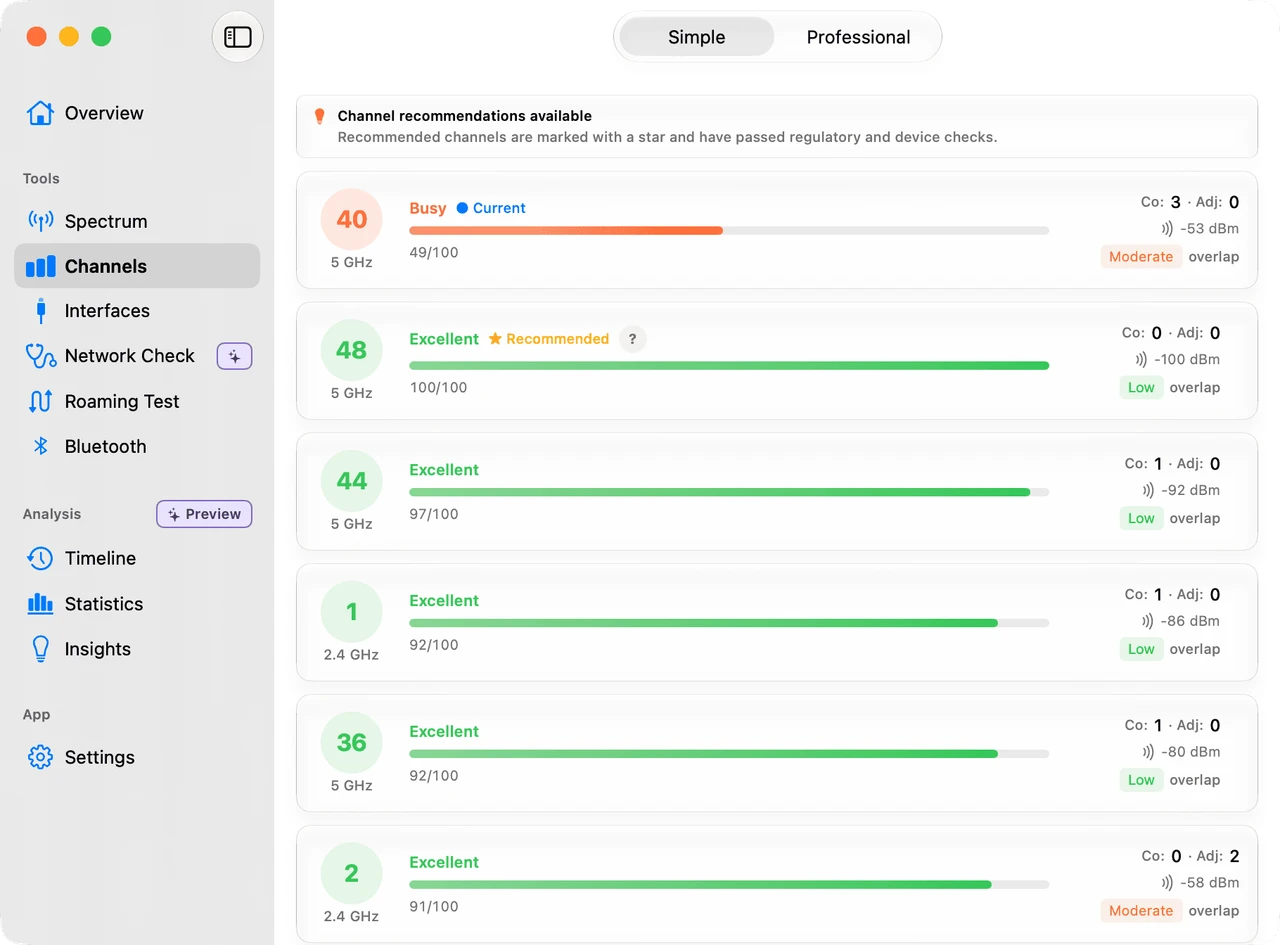
The question behind the chart
Which part of the wireless environment is making this harder?
Channel numbers are useful only in context. WiFi Lens puts nearby networks, bands, signal levels, and channel quality in the same view so you can compare what changed.
More channel space can help, but channel width, region rules, DFS behavior, and nearby networks still shape the result.
A newer band with more room in supported environments. Your Mac hardware and macOS determine what the scan can expose.
A repeatable check
From scan to a better next question
The analyzer is most useful when it supports a real comparison: the same Mac, the same task, and the same room where the symptom appears.
Scan nearby networks
Start with the networks your Mac can actually see across the supported bands.
Compare channel use
Look at signal strength, channel placement, and visible overlap instead of guessing from a single channel number.
Check channel quality
Use WiFi Lens channel scoring and the Spectrum view to narrow down a practical next check.
Verify real use
Return to the room and task where the problem appears. A cleaner-looking chart is not a fix unless the experience improves.
Know the boundary
A Wi-Fi channel analyzer is not every kind of network tool.
WiFi Lens is deliberately focused on the wireless environment your Mac can observe. It helps narrow down channel, signal, and roaming questions without pretending to prove every possible cause.
WiFi LensNearby Wi-Fi, channels, signal strength, channel quality, and roaming observation.
Wireless DiagnosticsBuilt-in macOS inspection and troubleshooting for the current connection.
Packet analyzerProtocol-level capture and inspection belong to tools such as Wireshark.
Port scannerHost and port discovery belong to tools such as Nmap, not WiFi Lens.
Make the comparison visible
Look at the nearby networks before you touch the router.
The Spectrum view shows where visible networks sit across the bands. The Channel Quality view helps turn that picture into a shortlist of practical checks. Neither view replaces testing the page, call, or transfer that is actually failing.
Read the guide to a slow room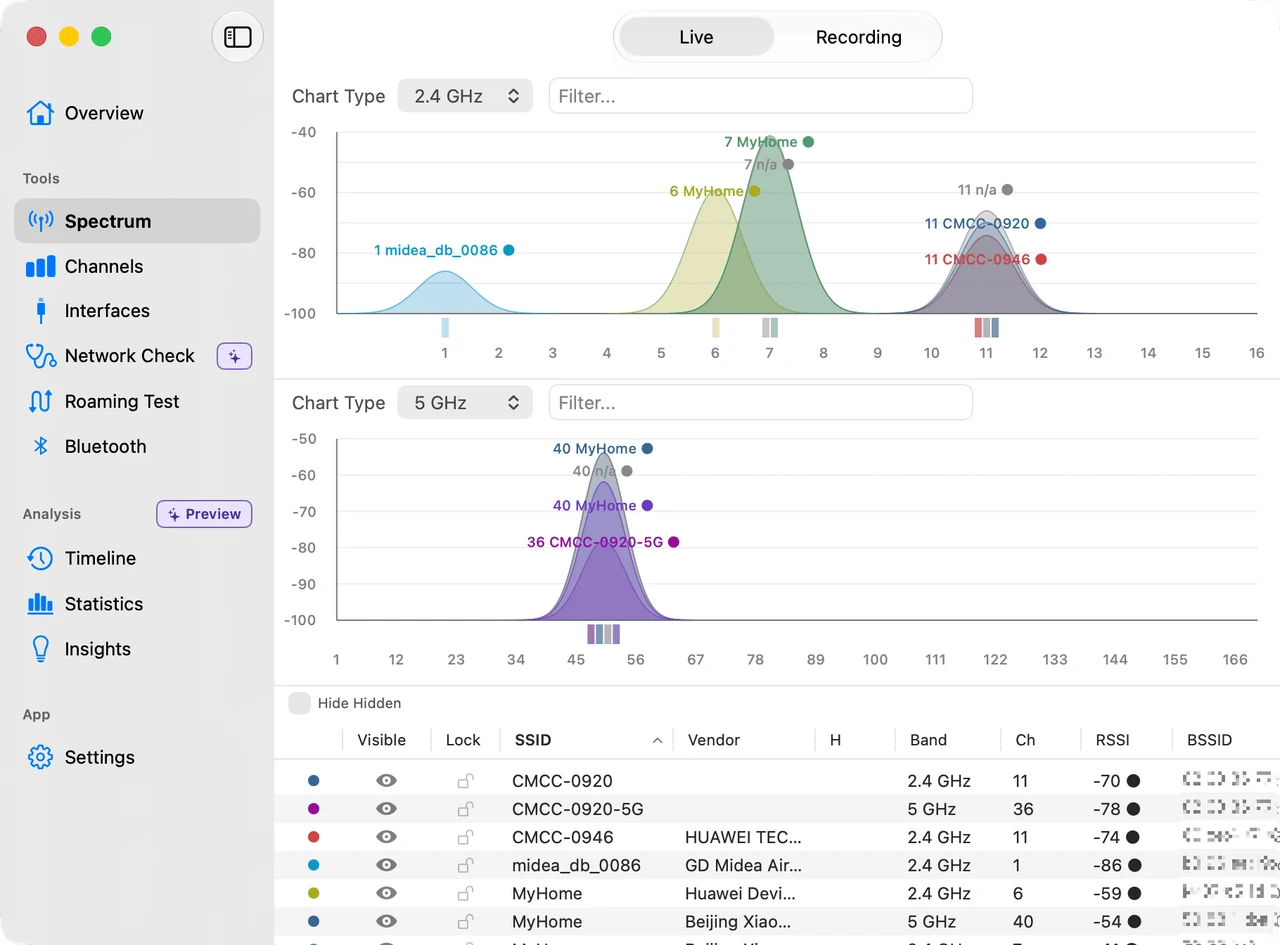
Common questions
What this page can help you answer
- What does a Wi-Fi channel analyzer do on a Mac?
- It shows nearby Wi-Fi networks, their bands, channels, signal levels, and visible channel use so you can investigate congestion before changing router settings.
- Does WiFi Lens scan 2.4 GHz, 5 GHz, and 6 GHz?
- WiFi Lens scans the supported 2.4 GHz, 5 GHz, and 6 GHz Wi-Fi bands. 6 GHz visibility still depends on your Mac hardware and the wireless information macOS exposes.
- Is WiFi Lens a raw RF spectrum analyzer?
- No. WiFi Lens analyzes visible Wi-Fi networks, channels, signal strength, and channel quality. Raw RF spectrum analysis is a different workflow that can require dedicated hardware.
- Can I use Apple Wireless Diagnostics instead?
- Wireless Diagnostics is useful for inspecting and troubleshooting the current Mac connection. WiFi Lens is focused on a clearer, live view of nearby networks, channel use, and repeated Wi-Fi comparisons.
Start with the question
Check the channel your Mac is actually using.
Download WiFi Lens, or follow the step-by-step guide before you change router settings.