See when your Mac moves from one visible access point to another instead of guessing from the network name alone.
Mac Wi-Fi diagnostics
Wi-Fi Roaming Test for Mac
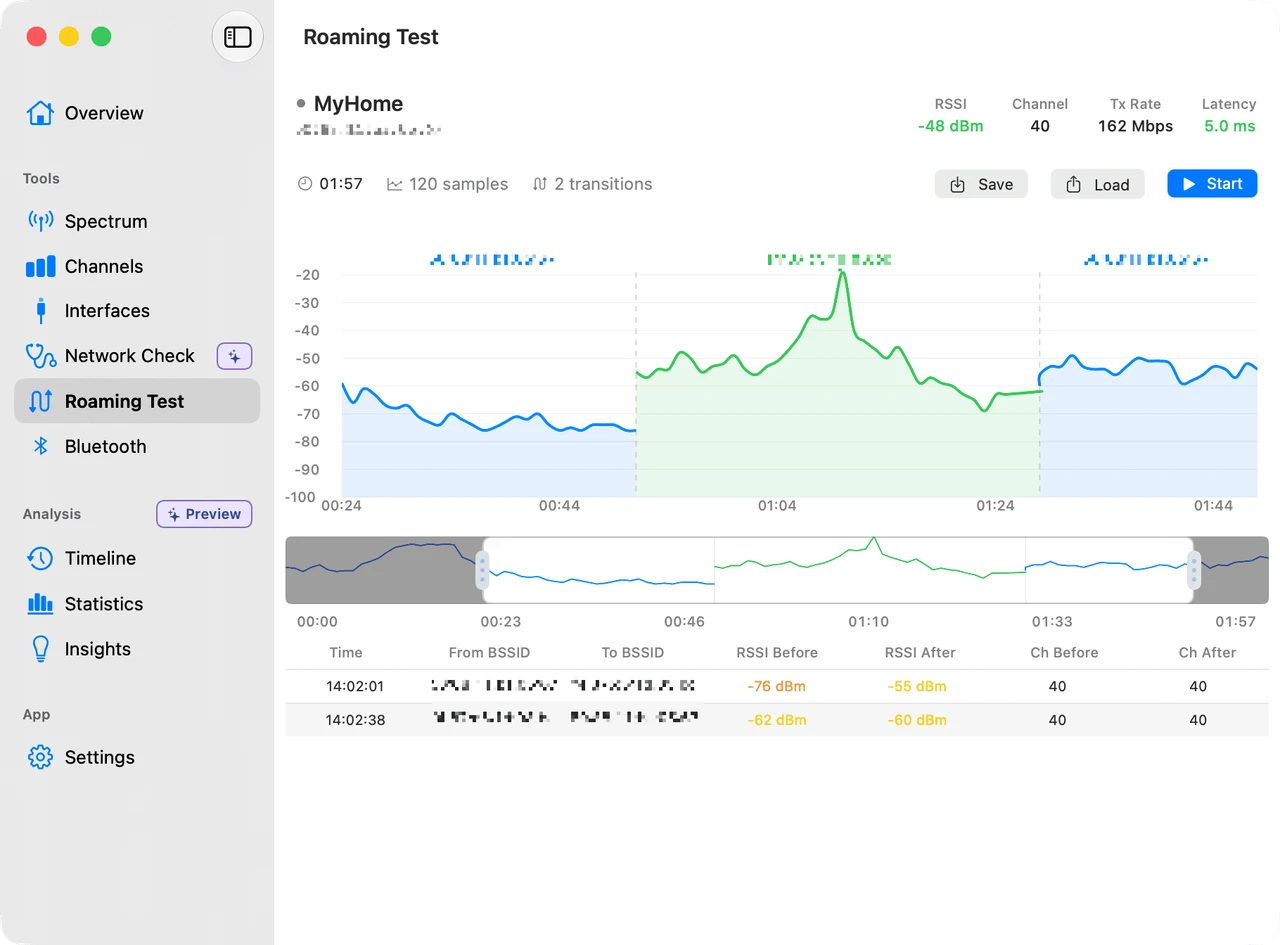
Track access-point handoffs, signal changes, and the route your Mac takes through a multi-AP Wi-Fi network.
The question behind the handoff
Did your Mac move to the right access point at the right moment?
A Wi-Fi name can stay the same while the access point changes underneath it. WiFi Lens keeps the handoff, signal trend, and route visible so you can compare what the Mac observed with what you experienced.
Follow received signal strength as you move between rooms, floors, or the edges of wireless coverage.
Keep a roaming session so you can replay the route and compare it with a later placement or network change.
A repeatable walk test
Turn a vague coverage complaint into a route you can compare.
Roaming evidence becomes useful when the path and the task stay consistent. Start with the place where the call, page, or transfer actually fails.
Choose a route
Start near one access point and walk the route where calls, pages, or transfers feel unstable.
Observe the handoff
Watch signal changes and access-point identity as your Mac moves through the wireless environment.
Repeat the same path
Keep the Mac, task, and route consistent so a second session gives you a useful comparison.
Verify real use
Match the handoff timeline with the page, call, or transfer that originally exposed the problem.
Know the boundary
A roaming timeline is evidence, not a controller verdict.
The Mac can show what it observed from the client side. It cannot expose every decision made by a mesh controller or prove that one handoff caused every interruption.
WiFi LensVisible access points, BSSID changes, signal trends, channel context, and saved roaming sessions.
Mesh controllerController policy, client steering rules, backhaul state, and vendor-specific decisions remain outside the Mac view.
Packet analyzerProtocol-level capture and packet inspection belong to tools such as Wireshark.
Survey toolFloor-plan heatmaps and raw RF measurements are different workflows and may require dedicated hardware.
Read the session in context
Look for the pattern that repeats, not the most dramatic timestamp.
A handoff matters when it lines up with the real symptom. Compare the same route again, then separate coverage, channel conditions, and an internet-path problem before changing the network.
Choose the right network analyzer for the questionCommon questions
What a Mac roaming test can and cannot answer
- What does a Wi-Fi roaming test show on a Mac?
- It records how your Mac moves between visible access points while you walk, including BSSID changes, signal changes, and the timing of observed handoffs.
- Can WiFi Lens test Wi-Fi roaming between mesh access points?
- Yes. Walk the same route with your Mac while WiFi Lens observes the access points and signal changes. The result helps you investigate coverage and handoff behavior on the network your Mac can see.
- Does a roaming test prove that a handoff is good?
- No. A handoff record is evidence, not a universal quality verdict. Check the real page, call, stream, or transfer at the same point in the route to confirm whether the experience improved.
- Does WiFi Lens replace a packet analyzer or Wi-Fi survey tool?
- No. WiFi Lens focuses on visible Wi-Fi networks, signal changes, channel conditions, and roaming observation. Packet capture, raw RF analysis, and floor-plan surveys are different workflows.
Start with the route
Test the handoff where your Wi-Fi actually feels unstable.
Download WiFi Lens, walk the same path, and compare the session with the real page, call, or transfer that matters.